Scans and Transcriptions
Description and user instructions for an application that allows you to view scans and create, verify, and export transcripts using Gemini models.
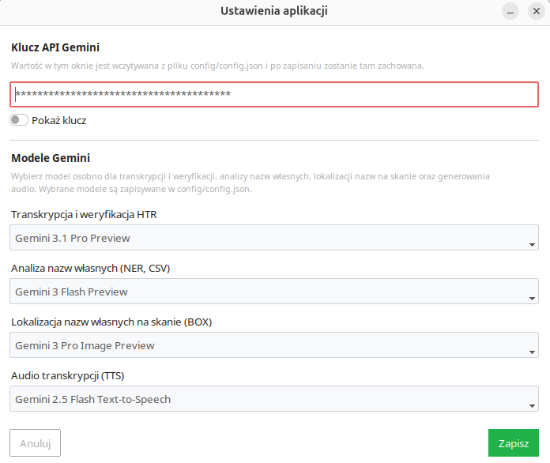
Scans and Transcriptions is a desktop application (Linux/Windows) designed for working with scans of manuscripts, typescripts, early printed books, and other source materials. The program makes it possible to generate an automatic transcription and then verify its accuracy by working with the document image and the text side by side.
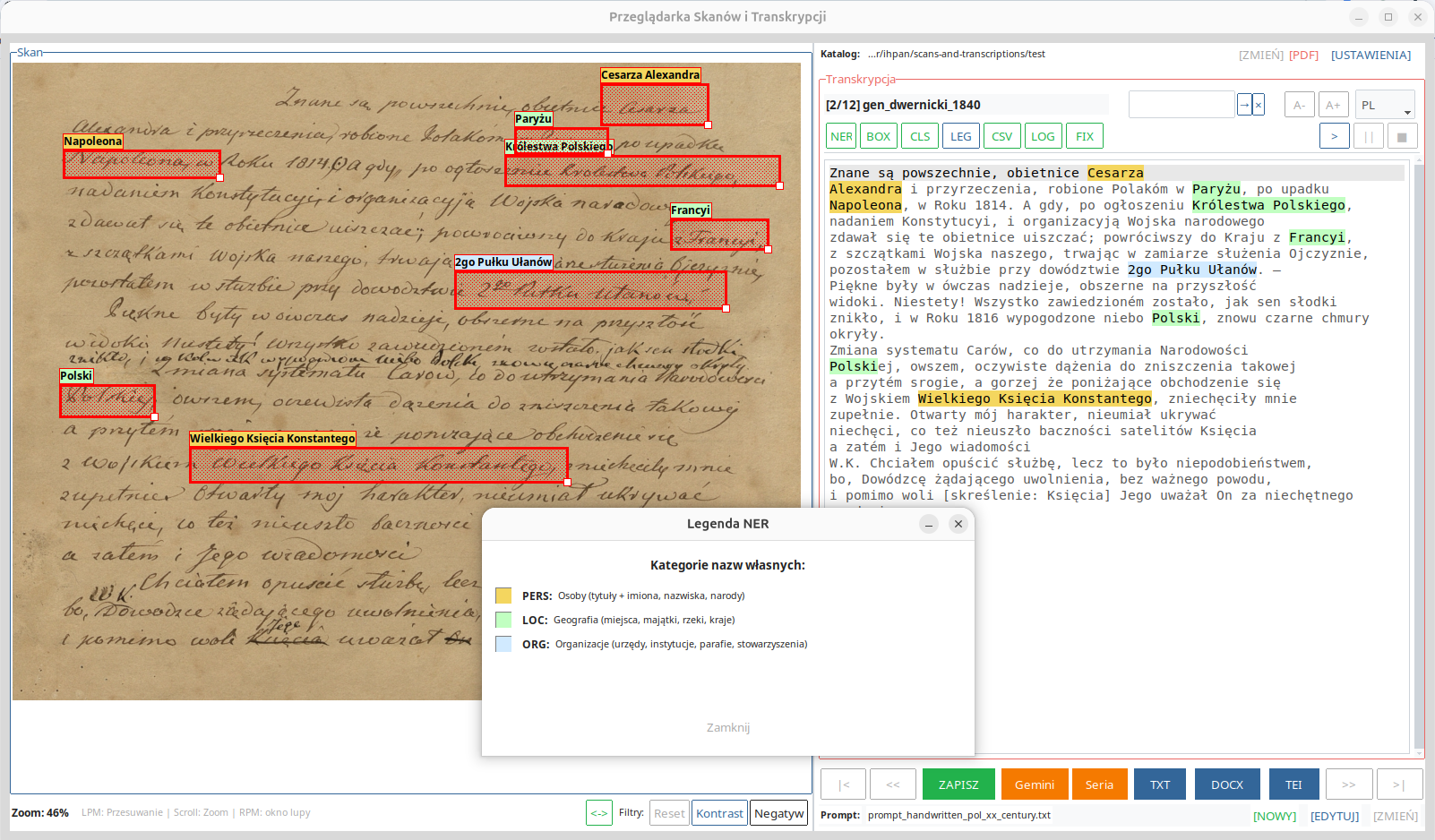
The application works with a selected working directory. In one place, it can store scan images, text files with transcriptions, audio recordings of the reading, and auxiliary metadata files. This makes the tool suitable both for the quick reading of a single document and for gradual work on a larger collection of materials.
Key features
- browsing scans and their corresponding transcription files,
- importing pages from a PDF file into the working directory,
- automatic transcription of a single scan or an entire series of files,
- saving results in TXT, DOCX, and TEI-XML formats,
- verification of transcriptions by zooming, panning, and filtering the image,
- text-to-speech playback,
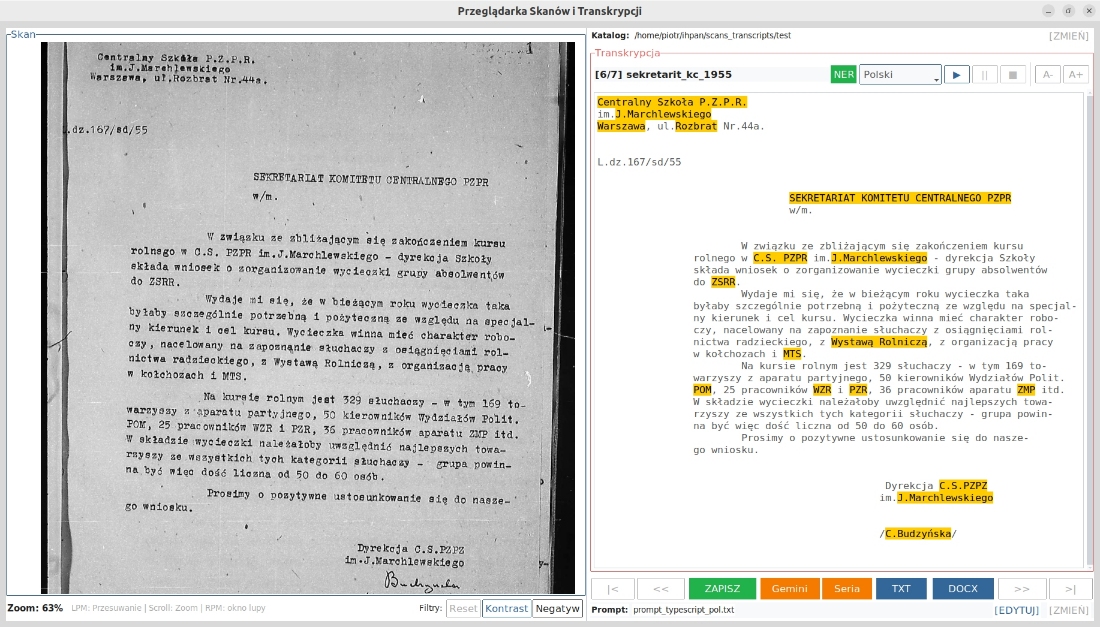
- highlighting named entities in the text and marking them on the scan,
- exporting recognized entities to a CSV file,
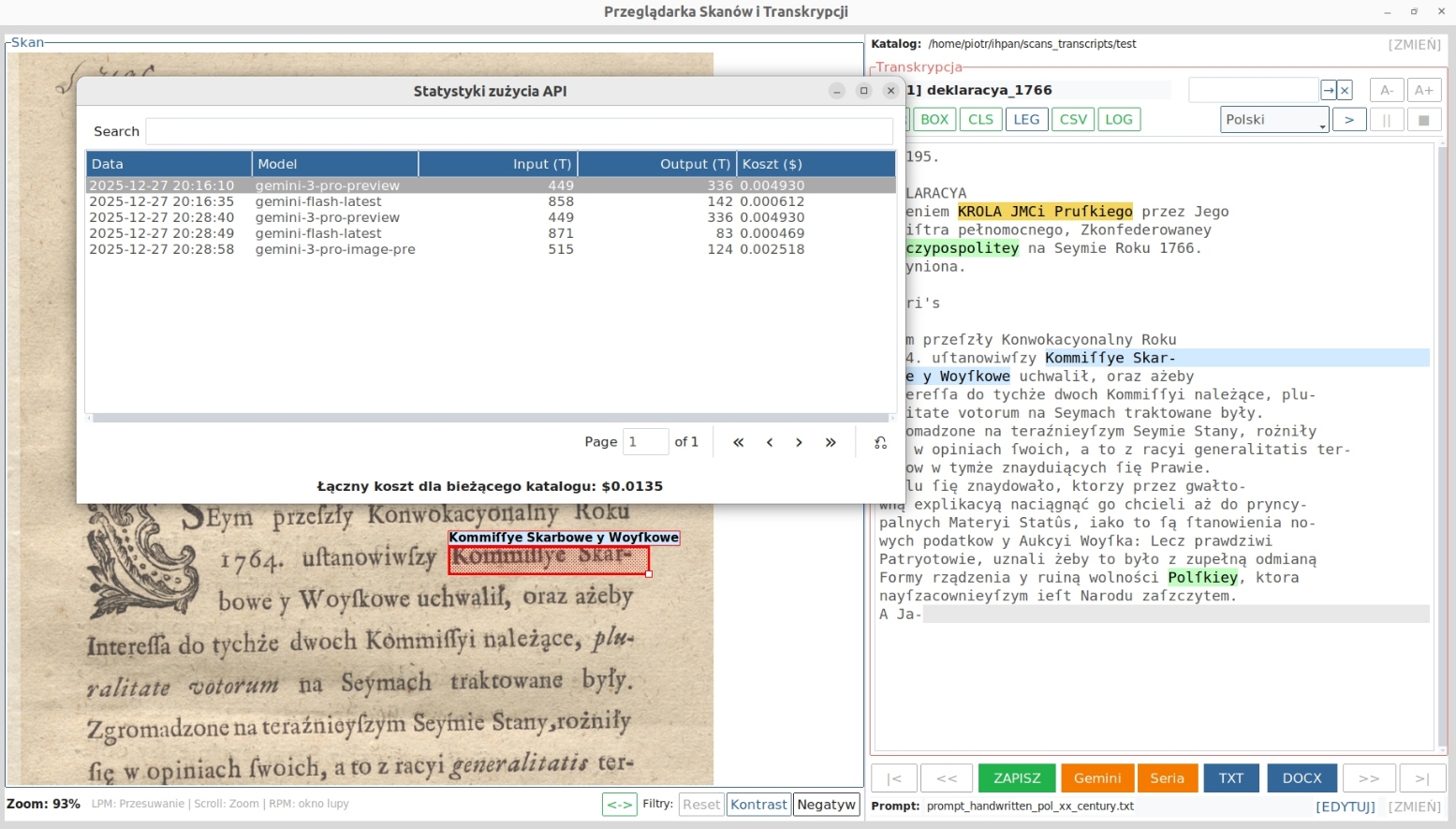
- recording API call costs for the current directory.
User guide
Selecting a working directory
After launching the program, the user should indicate the folder containing the scans. If the directory already contains
.txt files whose names correspond to the image file names, the application will load them as existing transcriptions.
If such files do not yet exist, the program will automatically create empty files, which will be filled in after running the Gemini model.
If there are no scans in the selected folder but a PDF file is present, the application will offer to extract scans from the PDF file
(they will be saved as files named img-01.png, etc.).
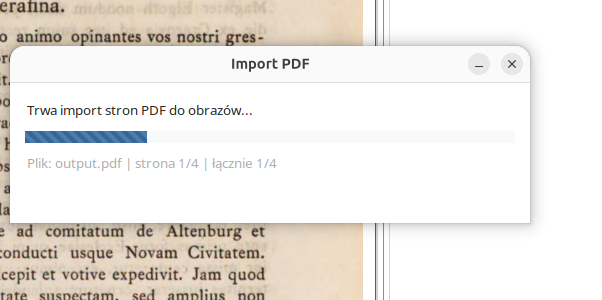
Importing from a PDF file
If the source material is available as a PDF file, the import function can be used. The program will extract the successive
pages and save them in the working directory as separate image files, for example img-01.png,
img-02.png, and so on. This is particularly useful when working with materials downloaded from
digital libraries.
Automatic transcription
The application can read either a single scan or an entire series of files. The user may rely on predefined prompts or prepare their own instructions for the model. In batch reading mode, the program by default selects those files that do not yet have a transcription or whose transcription file is empty, but this selection can be changed manually.
Verifying and correcting the text
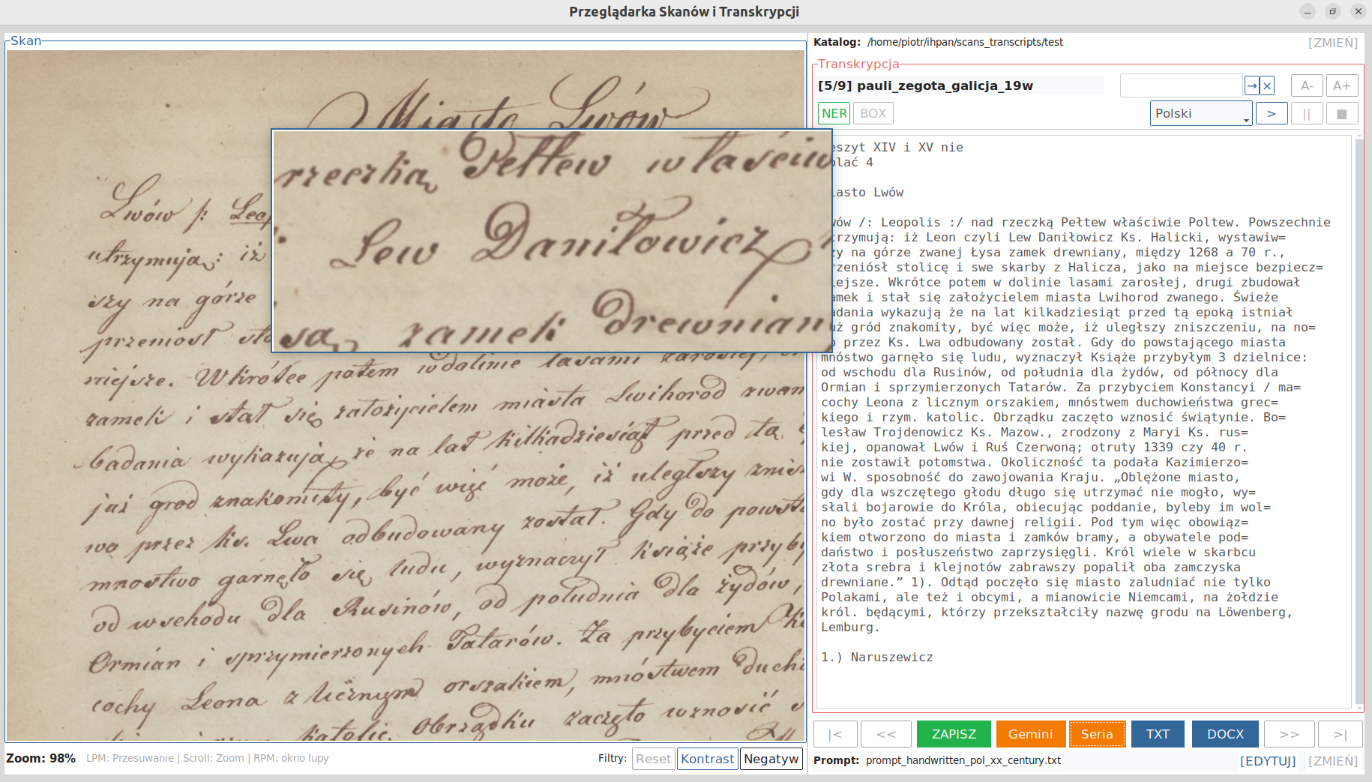
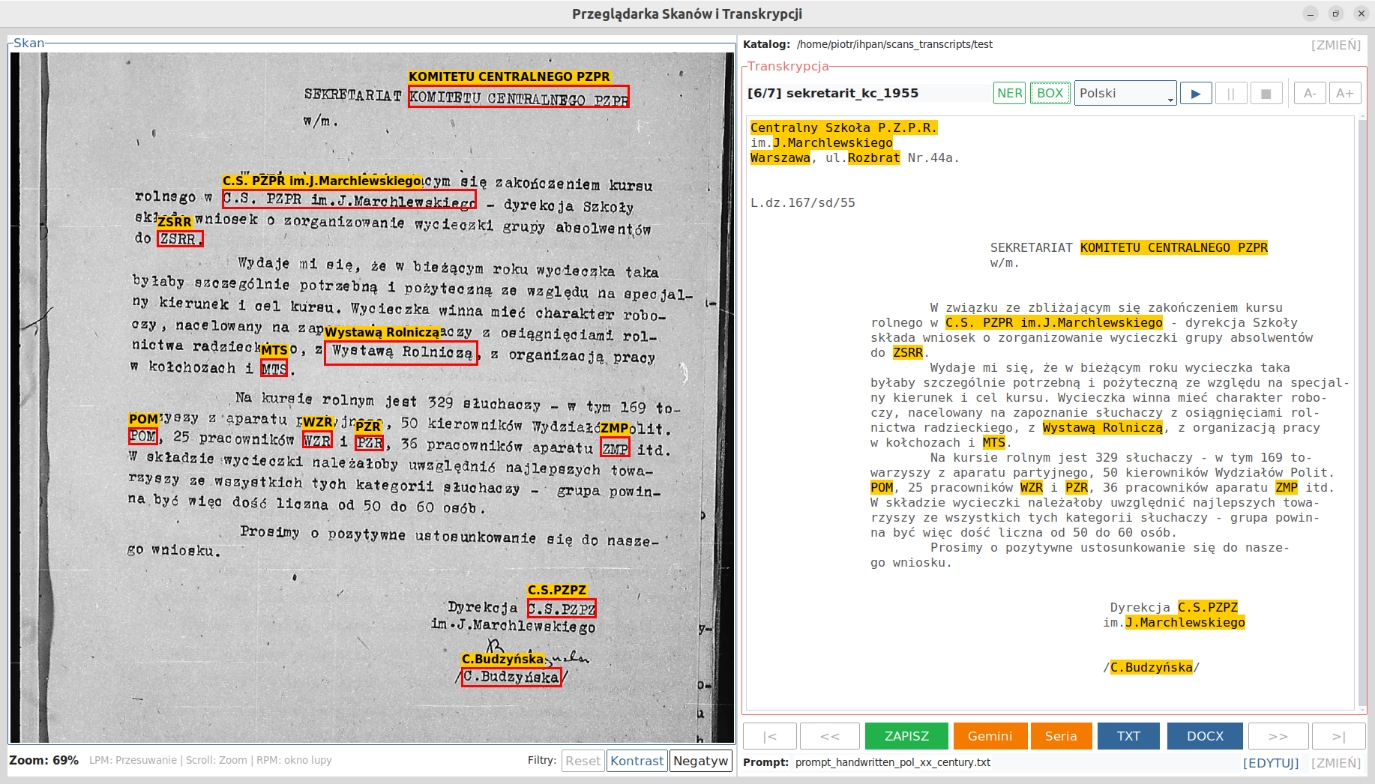
Once the reading has been completed, the user can inspect the result by comparing the text with the scan. In the image panel, the following tools are available: panning, zooming in and out, a magnifier, and basic image filters. In the text panel, the user can manually correct the transcription, search text fragments, and change the font size.
Exporting results
Completed transcriptions can be saved as a merged text file, a DOCX document, or a TEI-XML file. Recognized named entities can also be exported to a CSV file, which facilitates their further use in research.
Interface elements
Scan panel
The left panel is used for working with the document image. The user can move the scan with the mouse, change the viewing scale, use the magnifier, and apply simple filters such as contrast enhancement or color inversion. These functions are particularly useful for manuscripts and less legible reproductions.
Main toolbar
The main toolbar makes it possible to move between files, save changes, run the reading of a single scan or an entire series, and export the results to selected formats. This area also displays information about the currently selected prompt file.
Transcription toolbar
Above the text field there are auxiliary tools: transcription search, font size adjustment, switching the interface language, and buttons related to text-to-speech playback and named-entity control. The application currently supports Polish and English language versions.
Named-entity control
In automatic transcription practice, errors occur particularly often in the names of people, places, and institutions. For this reason, the application includes separate functions that support the verification of such elements.
- NER highlights named entities in the transcription text,
- BOX marks them directly on the scan,
- CLS removes the markings,
- LEG displays a color legend for entity categories,
- CSV exports the list of recognized names to a file.
The BOX function is experimental in nature. The boxes indicating names can be moved and corrected manually. Its purpose is not full automation of verification, but rather to facilitate the quick comparison of text with the document image.
Text-to-speech playback and cost control
The program makes it possible to read the transcription aloud, which may help identify typos and editorial issues. In addition, the application records information about the models used, the number of tokens, and the costs of API calls for the current directory.
Sample application screens

User tips
- for the application, a “project” is simply a folder containing scans, so it is best to work in separate folders for each set of scans,
- after automatic reading, the text should always be checked manually,
- special attention should be paid to named entities, dates, and numbers,
- the magnifier and image filters are particularly useful for manuscripts and low-quality scans,
- export to TEI-XML may serve as a convenient starting point for further scholarly processing of the source material.
Project access
Project repository: GitHub – scans-and-transcriptions
Release 0.1 for Windows: GitHub Releases – v0.1 The link above contains a ZIP package with the folder containing the application. Note: due to restrictions and security features in newer versions of Windows, it may be necessary to exclude the application folder in order to run it correctly.