WikiHumMCP
How to configure access to WikiHumMCP
WikiHumMCP gives language model applications such as ChatGPT and Claude access to data from the historical WikiHum knowledge base. Through the Model Context Protocol (MCP), an application can search the database, retrieve information about its records, and make the queries needed to answer a question.
Once the connection is configured, you can ask questions about WikiHum data in natural language. The scope and accuracy of the answers depend on the database contents and the model used. Check the information against the relevant WikiHum records and the sources they cite.
Server address: https://wb-mcp.wmcloud.org/wikihum/mcp
Authentication: not required
The instructions below cover three applications. Option names and locations may change with updates; integration availability may also depend on your account type and organization settings.
Jan
Jan is a desktop application for Windows, macOS, and Linux. It supports both local models and models provided by external services. To use WikiHumMCP, configure a model that supports tool calling; depending on the provider, you may need to enable this feature in the model settings.
Add the server
- Open the application settings and go to MCP Servers (in some versions, this is under Integrations).
- Select + Add MCP Server and enter the following details:
- Name:
WikiHumMCP - Transport:
HTTP - URL:
https://wb-mcp.wmcloud.org/wikihum/mcp - Timeout: 30 seconds; increase it if needed.
- Name:
- Save the configuration and enable the server. A green indicator next to its name shows that the connection is active.
Enter the address without a trailing slash. The server requires neither an API key nor a sign-in.
You can enable Allow All MCP Tool Permissions in the settings to approve MCP tool use automatically in all conversations. This setting is optional; without it, the application may ask for permission before using a tool.
Test the connection
Start a new conversation and select a model that supports tools. Use the tools icon beside the message field to check that the WikiHumMCP functions are available. To limit the search to WikiHum, you can turn off Web Search. Then enter, for example:
Search WikiHum for Jan Kostka and provide a link to the relevant record.
Example of use
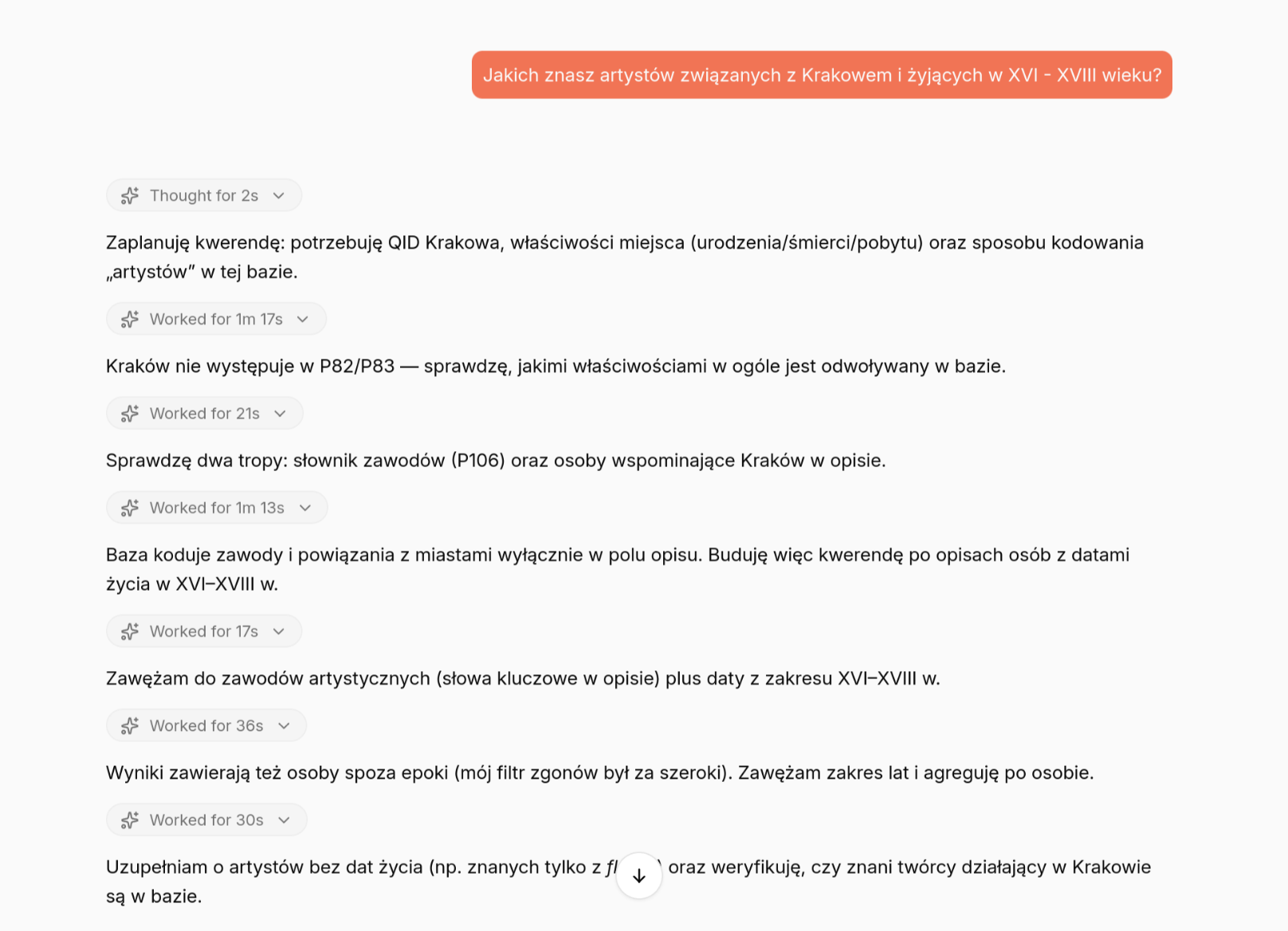
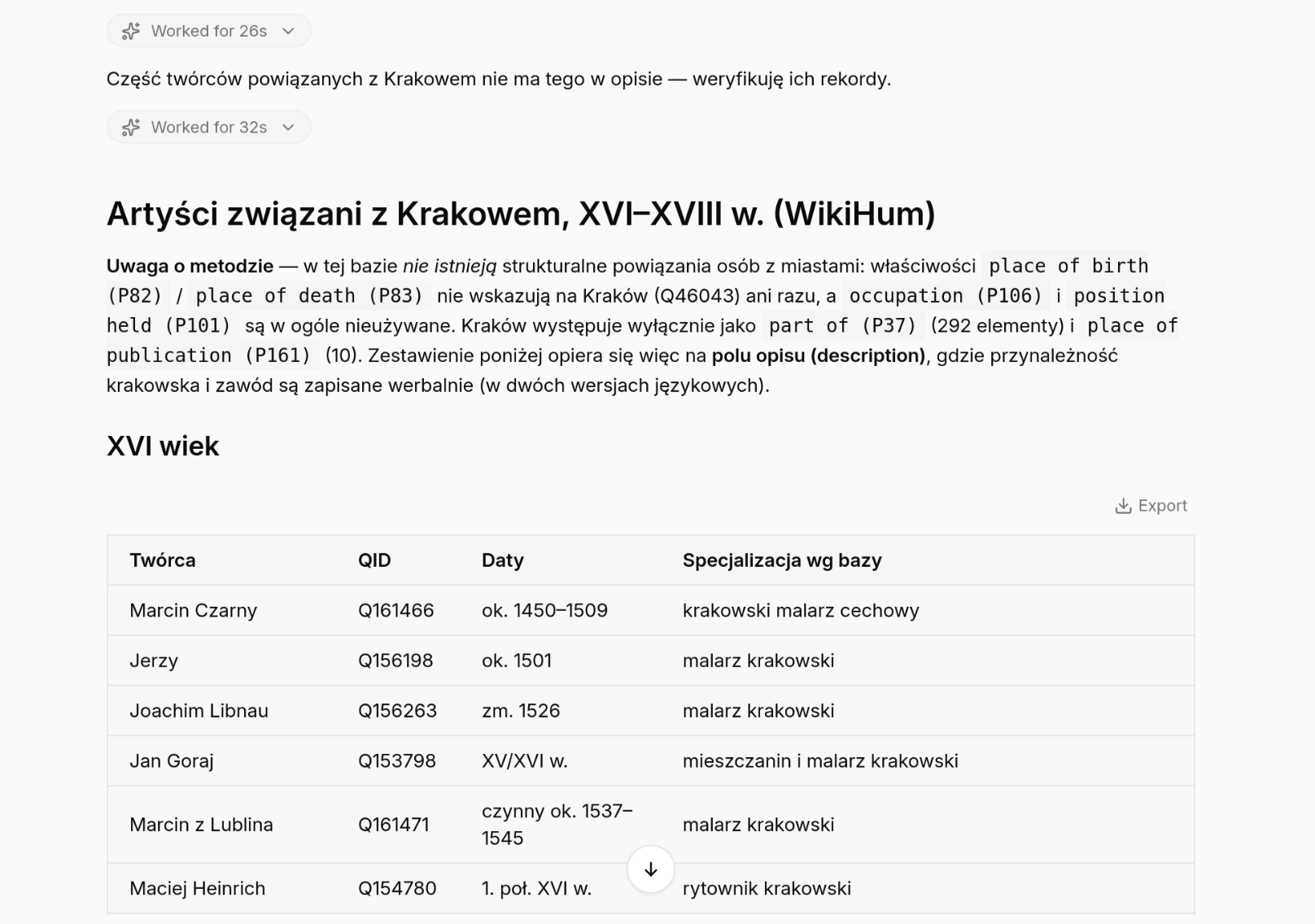
The screenshots below show Jan using WikiHumMCP to answer the question, “Which artists associated with Kraków lived in the 16th–18th centuries?” The conversation shown is in Polish. Select an image to read it at full resolution.
Claude
Claude lets you add a remote MCP server as a custom connector. These instructions apply to the Claude application; connector availability and management depend on the account type and organization permissions. The Free plan allows one custom connector.
Add the connector
- In the menu, select Customize → Connectors → + Add → Add custom connector.
- Enter
WikiHumMCPas the name andhttps://wb-mcp.wmcloud.org/wikihum/mcpas the address. - Complete the remaining setup steps. If asked how to authenticate, select No sign in; this server does not require a sign-in.
- Add the connector and check that it is connected. Under Tool permissions, you can choose whether to allow each use of a tool individually or grant ongoing permission.
Test the connection
In a new conversation, enable the WikiHumMCP connector using the + button and the Connectors menu. Then enter:
Search WikiHum for Jan Kostka and provide a link to the relevant record.
ChatGPT
In ChatGPT, you can add the WikiHumMCP server as a custom plugin. The ability to add and use custom MCP servers depends on your account type, the available interface, and workspace permissions. Configure it in the browser version of ChatGPT.
Add the server
- Open Plugins in the sidebar, select +, and then Add custom MCP server.
- Enter
WikiHumMCPas the name and, optionally, add a description. Enterhttps://wb-mcp.wmcloud.org/wikihum/mcpin Server URL. - Under Authentication, select No authentication.
- Read the connection notice, select I understand and want to continue, and choose Create as a plugin. Review the detected tools, then install the new plugin.
Test the connection
Start a new conversation in Work mode. Type @ in the message field and select WikiHumMCP. Then ask, for example:
Search WikiHum for Jan Kostka and provide a link to the relevant record.
If the application asks for permission to use a tool, approve it to allow the data search.
Connection problems
If the server does not work, check the address, your internet connection, and whether the integration is enabled in the current conversation. In Jan, also make sure the address has no trailing slash and that the selected model supports tools. If the option to add a connector or plugin is missing, check your account restrictions or contact your workspace administrator.
For current setup instructions, consult the documentation for Jan, Claude, and OpenAI.